Please Share This Articles ››
Follow Me on Pinterest
background
.

UBlog

  • home
  • Sitemap
  • Contact
    • Contact
    • Forum
  • Blogger Tips
    • CSS
    • jQuery
    • SEO Friendly
    • Widget
    • Tools Blog
    • Other Trik
  • Lifestyle
    • Info Unik
    • Info Islami
    • Sub Menu 3
    • Sub Menu 4
  • Live Streaming
    • TV Online
    • Jadwal Sholat
    • Al-Qur'an Online
    • Al-Hadist Online
  • Other Links
    • Kritik Dan Saran
    • Request Blogger Themes
  • Link Exchanges
    • Blog Link/Banner
    • Friend Link/Banner

Recommendations

Latest Movie

Categories

  • Admin
  • Bollywood
  • Breaking News
  • Browser
  • CSS Code Snippet
  • CSS3
  • Driver
  • Emotions Komentar
  • Gallery
  • Gambar Animasi GIF
  • Game Flash
  • Hack Threaded Comments
  • Info Islami
  • Info Teknology
  • Info Unik
  • Javascript
  • jQuery
  • Lightbox Plugin
  • Menu Horizontal and Vertical
  • Photoshop
  • Premium Template
  • SEO
  • Slider Plugin
  • Submit Website
  • Template Blogger
  • Tips-Trik Facebook
  • Tips-Trik Handphone
  • Tips-Trik Internet
  • Tips-Trik Windows
  • Tools Blog
  • Tutorial Lainnya
  • TV Streaming
  • Widget
  • Zoom Plugins
Tampilkan postingan dengan label Zoom Plugins. Tampilkan semua postingan


Since the thumbnail spotlight effect i wrote a tutorial about was and still is amazingly popular i decided to make another cool thumbnail effect. This time with zoom and sliding caption.

How to use it? Just hover over the images and you will see the effect.

Example Thumbnail Effect With Zoom And Sliding Captions, Klik Here,,

CSS::

.thumbnailWrapper { width:600px; margin:0px auto; } /* not important */

.thumbnailWrapper ul {
list-style-type: none; /* remove the default style for list items (the circles) */
margin:0px; /* remove default margin */
padding:0px; /* remove default padding */
}
.thumbnailWrapper ul li {
float:left; /* important: left float */
position:relative; /* so we can use top and left positioning */
overflow:hidden; /* hide the content outside the boundaries (ZOOM) */
}
.thumbnailWrapper ul li a img {
width:200px; /* not important, the pics we use here are too big */
position:relative; /* so we can use top and left positioning */
border:none; /* remove the default blue border */
}
.caption{
position:absolute; /* needed for positioning */
bottom:0px; /* bottom of the list item (container) */
left:0px; /* start from left of the list item (container) */
width:100%; /* stretch to the whole width of container */
display:none; /* hide by default */
/* styling bellow */
background:rgba(0,0,0,0.8);
color:white;
}
.caption .captionInside{
/* just styling */
padding:10px;
margin:0px;
}
.caption p{
text-align:center;
font-size:110%;
}
.clear { clear:both; } /* to clear the float after the last item */

SCRIPT::

<script src='http://ajax.googleapis.com/ajax/libs/jquery/1.7.1/jquery.min.js' type='text/javascript'></script>

<script type="text/javascript" charset="utf-8">
$(window).load(function(){
//set and get some variables
var thumbnail = {
imgIncrease : 100, /* the image increase in pixels (for zoom) */
effectDuration : 400, /* the duration of the effect (zoom and caption) */
/*
get the width and height of the images. Going to use those
for 2 things:
make the list items same size
get the images back to normal after the zoom
*/
imgWidth : $('.thumbnailWrapper ul li').find('img').width(),
imgHeight : $('.thumbnailWrapper ul li').find('img').height()
};

//make the list items same size as the images
$('.thumbnailWrapper ul li').css({
'width' : thumbnail.imgWidth,
'height' : thumbnail.imgHeight
});

//when mouse over the list item...
$('.thumbnailWrapper ul li').hover(function(){

$(this).find('img').stop().animate({

/* increase the image width for the zoom effect*/
width: parseInt(thumbnail.imgWidth) + thumbnail.imgIncrease,
/* we need to change the left and top position in order to
have the zoom effect, so we are moving them to a negative
position of the half of the imgIncrease */
left: thumbnail.imgIncrease/2*(-1),
top: thumbnail.imgIncrease/2*(-1)

},{

"duration": thumbnail.effectDuration,
"queue": false
});

//show the caption using slideDown event
$(this).find('.caption:not(:animated)').slideDown(thumbnail.effectDuration);

//when mouse leave...
}, function(){

//find the image and animate it...
$(this).find('img').animate({

/* get it back to original size (zoom out) */
width: thumbnail.imgWidth,
/* get left and top positions back to normal */
left: 0,
top: 0

}, thumbnail.effectDuration);

//hide the caption using slideUp event
$(this).find('.caption').slideUp(thumbnail.effectDuration);

});
});
</script>

HTML::

<!-- start thumbnailWrapper -->
<div class='thumbnailWrapper'>
<ul>
<li><a href='#'><img src='http://web.enavu.com/demos/thumbnailZoom/images/1.jpg' /></a>
<div class='caption'>
<p class='captionInside'>CofeeNerd</p>
</div></li>

<li><a href='#'><img src='http://web.enavu.com/demos/thumbnailZoom/images/2.jpg' /></a>
<div class='caption'>
<p class='captionInside'>musiKings</p>
</div></li>

<li><a href='#'><img src='http://web.enavu.com/demos/thumbnailZoom/images/3.png' /></a>
<div class='caption'>
<p class='captionInside'>The Caribbean Energy Conference 2010</p>
</div></li>

<li><a href='#'><img src='http://web.enavu.com/demos/thumbnailZoom/images/4.jpg' /></a>
<div class='caption'>
<p class='captionInside'>Coffee</p>
</div></li>

<li><a href='#'><img src='http://web.enavu.com/demos/thumbnailZoom/images/5.jpg' /></a>
<div class='caption'>
<p class='captionInside'>Quantum</p>
</div></li>

<li><a href='#'><img src='http://web.enavu.com/demos/thumbnailZoom/images/6.png' /></a>
<div class='caption'>
<p class='captionInside'>Infinite Love</p>
</div></li>

<li><a href='#'><img src='http://web.enavu.com/demos/thumbnailZoom/images/7.jpg' /></a>
<div class='caption'>
<p class='captionInside'>Fathom</p>
</div></li>

<li><a href='#'><img src='http://web.enavu.com/demos/thumbnailZoom/images/9.PNG' /></a>
<div class='caption'>
<p class='captionInside'>Mixed Pome</p>
</div></li>

<li><a href='#'><img src='http://web.enavu.com/demos/thumbnailZoom/images/10.jpg' /></a>
<div class='caption'>
<p class='captionInside'>Golf Lessons Online</p>
</div></li>
<div class='clear'></div><!-- clear the float -->
</ul>
</div><!-- end spolightWrapper -->

Semoga bermanfaat yaa,, ^^

Source

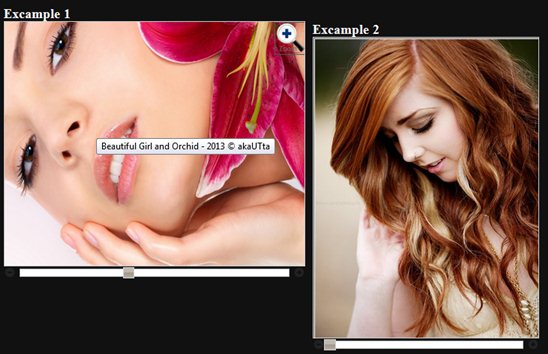
Really nice image jQuery Zoom plugin with the following features: click on plus and minus to zoom, drag the slider to zoom Zoom using mousewheel hover the image, Moving mouse hover the image change the pan, Click on the image to show in lightbox style...
Demo sobat lihat disini...

CSS::

/* Component containers
----------------------------------*/
.ui-widget { font-family: Verdana,Arial,sans-serif; font-size: 11px; }
.ui-widget-content { border: 1px solid #bbb;background:#ffffff url(http://lab.gianiaz.com/jquery/gzoom/images/ui/ui-bg_flat_75_ffffff_40x100.png) 50% 50% repeat-x;}
/* Interaction states
----------------------------------*/
.ui-widget-content .ui-state-default { border: 1px solid #d3d3d3; background: #a59a8d url(http://lab.gianiaz.com/jquery/gzoom/images/ui/ui-bg_glass_75_a59a8d_1x400.png) 50% 50% repeat-x;}
.ui-widget-content .ui-state-hover { border: 1px solid #999999; background: #dadada url(http://lab.gianiaz.com/jquery/gzoom/images/ui/ui-bg_glass_75_dadada_1x400.png) 50% 50% repeat-x;}
/* Icons
----------------------------------*/
.ui-icon { width: 16px; height: 16px; background-image: url(http://lab.gianiaz.com/jquery/gzoom/images/ui/ui-icons_222222_256x240.png); }
/* positioning */
.ui-icon-circle-plus { background-position: 0 -192px; }
.ui-icon-circle-minus { background-position: -16px -192px; }
/* Slider
----------------------------------*/
.ui-slider { position: relative; text-align: left; }
.ui-slider .ui-slider-handle { position: absolute; z-index: 2; width: 1.2em; height: 1.2em; cursor: default; }
.ui-slider-horizontal { height: .8em; }
.ui-slider-horizontal .ui-slider-handle { top: -.3em; margin-left: -.6em; }


/* MiniZoomPan styles */
.gzoomwrap {
  float:left;
  margin:0 10px 0 0;
}
.minizoompan {
  background: #fff;
  position: relative; /* always set to relative or offset() won't work */
border: 1px solid lightgray;
  padding: 0;
  margin: 0;
}

.minizoompan span.loader { /* the loader label*/
  position:absolute;
  left:0;
  top:0;
  z-index: 1;
  display: none;
  color:#000;
  background:none;
  font: normal 11px Arial, Verdana;
  padding: 3px;
}
.minizoompan .zoomIcon { /* the zoom icon */
  position:absolute;
  cursor:pointer;
  left:0;
  top:0;
  z-index: 1;
  display: none;
}

.gzoombutton {
  float:left;
  cursor:pointer;
}
.gzoomSlider {
  float:left;
  margin:3px 5px 0 5px;
}

#gzoomoverlay {
    position: absolute;
    top: 0;
    left: 0;
    z-index: 90;
    width: 100%;
    height: 500px;
}
#gzoomlbox {
    position: absolute;
    top: 0;
    left: 0;
    width: 100%;
    z-index: 100;
    text-align: center;
    line-height: 0;
}
#gzoomlbox a img {
  border: none;
}
#imagebox {
    position: relative;
    background-color: #fff;
    width: 250px;
    height: 250px;
    margin: 0 auto;
}
#gzoom-cont-img { padding: 10px; }

#lboximgdatacontainer {
    font: 10px Verdana, Helvetica, sans-serif;
    background-color: #fff;
    margin: 0 auto;
    line-height: 1.4em;
    overflow: auto;
    width: 100%;
    padding: 0 10px 0;
    padding: 0 10px 10px 10px;
    color:#666;
}
#gzoomloading {display:inline;background:url(http://lab.gianiaz.com/jquery/gzoom/images/loading.gif) no-repeat;
    position: absolute;
    top:50%;
    left:50%;right:50%;
    height: 25%;
    width: 100%;
    text-align: center;
    line-height: 0;
}

#lboximgdatacontainer #gzoomlbox-image-details { width:70%; float:left;text-align:left; }
#gzoom-image-caption {font-weight:bold;}
.zoomIcon {width:40px;height:40px;position:absolute;top:0;right:0;}

SCRIPT::

<script src='https://ajax.googleapis.com/ajax/libs/jquery/1.4.4/jquery.min.js' type='text/javascript'></script>

<script type="text/javascript" src="http://lab.gianiaz.com/jquery/gzoom/jquery/ui.core.min.js"></script>
<script type="text/javascript" src="http://lab.gianiaz.com/jquery/gzoom/jquery/ui.slider.min.js"></script>
<script type="text/javascript" src="http://lab.gianiaz.com/jquery/gzoom/jquery/jquery.mousewheel.js"></script>
<script type="text/javascript" src="http://lab.gianiaz.com/jquery/gzoom/jquery/jquery.gzoom.js"></script>

HTML for Excample 1

<div id="zoomligaka" class="zoom">
<img height='325' src="url-image.jpg" alt="zoomligaka" width='400' title="Beautiful Girl and Orchid - 2013 &copy; akaUTta" />
</div>
<script type= "text/javascript">
/*<![CDATA[*/
$(function() {
$("#zoomligaka").gzoom({
sW: 400,
sH: 325,
lW: 1024,
lH: 768,
lightbox: true,
zoomIcon: 'http://www.matalaaerationproducts.com/images/zoom-icon.png'
});});
/*]]>*/
</script>

HTML for Excample 2

<div class="zoomligaka1">
<img height='400' src="url-image.jpg" width='300' alt="zoomligaka" title="Beautiful Girl - Hair Orange Piercing - 2013 &copy; akaUTta" />
</div>
<script type= "text/javascript">
/*<![CDATA[*/
$(function() {
$(".zoomligaka1").gzoom({
sW: 300,
sH: 400,
lW: 1024,
lH: 768,
lightbox: true
});});
/*]]>*/
</script>

sumber

Kali ini kita akan belajar membuat "JETZOOM IMAGE dengan Fancybox jQuery Plugin" baiklah dan dibawah ini adalah contoh dari tutorial yang sedang kita bahas sekarang.!

DEMO JETZOOM IMAGES (and please click to view features fancybox).


Elisha Cuthbert
Elisha Cuthbert Elisha Cuthbert Elisha Cuthbert Elisha Cuthbert

Gimana,, tertarik untuk memasangnya?? jika begitu disini saya sudah memberikan kode yang akan kita butuhkan untuk memasangnya..

CSS ::

/*
 Jet Zoom CSS. (c)2013 Star Plugins.
 This CSS can be altered to change the look and size of the lens.
*/
.jetzoom-lens {border:1px solid #fff;width:50%;height:50%;border-radius:100%;-moz-border-radius:100%;-webkit-border-radius:100%;box-shadow:-0px -0px 10px rgba(0,0,0,0.30);-moz-box-shadow:-0px -0px 10px rgba(0,0,0,0.30);-webkit-box-shadow:-0px -0px 10px rgba(0,0,0,0.30);cursor:crosshair;}


#myFancyJetZoom{width:500px;height:350px;}


.image-wrap {border:1px solid #eee; display:inline-block;line-height:0;margin-top:10px;margin-bottom:10px;}

Ket::
- Angkat 500 adalah lebar gambar, sedangkan angka 350 itu tinggi gambar, jadi silahkan dirubah sesuai ukuran gambar anda.

SCRIPT ::

<script type="text/javascript" src="http://code.jquery.com/jquery-1.8.3.min.js"></script>

<script type="text/javascript" src="http://www.starplugins.com/sites/starplugins/js/jetzoom/jetzoom.js?v=3"></script>
       
<script type="text/javascript" src="http://www.starplugins.com/sites/starplugins/js/fancy/jquery.fancybox.js?v=1"></script>

<link rel="stylesheet" href="http://www.starplugins.com/sites/starplugins/js/fancy/jquery.fancybox.css??v=1" type="text/css" media="screen" />

<script type="text/javascript">
$(function(){
$('#myFancyJetZoom').bind('click',function(){
var jetZoom = $(this).data('JetZoom');
$.fancybox.open(jetZoom.getGalleryList());
return false;
});});
</script>

HTML::

<div style="text-align:center">
<div class="image-wrap">
<img class="jetzoom" id ="myFancyJetZoom" src="small-image.jpg"
title="The image title will also be passed to Fancy Box"
data-jetzoom='{"zoomImage":"Large-image.jpg","zoomPosition":"inside","tintOpacity":"0.40","tintColor":"#00EDDD"}'alt="Elisha Cuthbert"/>
</div>
</div>
<script type="text/javascript">
JetZoom.quickStart();
</script>

Ket::
- Silahkan anda ganti teks yang berwarna merah dengan alamat url gambar yang ingin dipasang!
- Sedangkan teks yang berwarna biru, adalah warna gambar saat hover, silahkan diganti.

Selamat mencoba, dan semoga tutorial ini bermanfaat bagi kita semua :D
Pada kesempatan subuh ini saya akan mencoba memberikan instruction bagaiman menggunakan/Memasang "Cloud Zoom Is A Popular Fly-Out jQuery" ini di blog anda, karena pada postingan saya sebelumnya pernah membahasa Cloud Zoom Is A Popular Fly-Out jQuery ini, karena dipostingan saya itu, saya belum sempat memberikan instruction secara details menggunakan efect ini. :D


Maka dari itu dipostingan saya sekarang, saya akan memberiakan tutorial menggunakan efect sperti ini diblog agan, karena kita akan bahasa keseluruhan sehingga anda dapat memahaminya.okey :D


Langsung saja jika sobat tertarik mencobanya, berikut ini penjelasannya !
Jadi yang pertama anda lakukan dengan memasang CSS & SCRIPT berikut ditemplate sobat:

1. Letakkan CSS berikut diatas kode  ]]></b:skin> .

.image-wrap {border:1px solid #eee;display:inline-block;line-height:0;margin-top:10px;margin-bottom:5px;}

2. Selanjutnya letakkan script berikut diatas kode </head> .

<script type="text/javascript" src="http://code.jquery.com/jquery-1.8.3.min.js"></script>

<script type="text/javascript" src="http://www.starplugins.com/sites/starplugins/js/starzoom.js?v=1"></script>

<script type="text/javascript" src="http://www.starplugins.com/sites/starplugins/js/jetzoom/jetzoom.js?v=3"></script>

<script type="text/javascript" src="http://www.starplugins.com/sites/starplugins/js/cloudzoom/cloudzoom.js?v=20"></script>

<script type="text/javascript" src="http://www.starplugins.com/sites/starplugins/js/prettify/prettify.js"></script>

<script type="text/javascript">
$(function(){
$('#zoom1').bind('click',function(){
var cloudZoom = $(this).data('CloudZoom');
cloudZoom.closeZoom();
$.fancybox.open(cloudZoom.getGalleryList());
return false;
});});
</script>

<script type="text/javascript">
StarZoom.quickStart();
JetZoom.quickStart();
CloudZoom.quickStart();
</script>

3. Setelah langkah diatas selesai, silahkan sobat save template.

4. Selanjutnya sobat perhatikan satu persatu efect dibawah ini, karena disetiap demo dibawah, saya akan memberikan kode CSS & HTML dibawahnya, jadi sobat tinggal memilih sesuai keingin masing-masing.


1. Gallery Images

Cloud Zoom has many configuration options to match the look and feel of your website. Cloud Zoom small image

Cloud Zoom has many configuration options to match the look and feel of your website.
Jet Zoom thumb image Jet Zoom thumb image Jet Zoom thumb image

CSS::

/*
 Cloud Zoom CSS. (c)2013 Star Plugins.
 This CSS can be altered to change the look and size of the lens.
*/
.cloudzoom-lens {border-radius:1%;-moz-border-radius:1%;-webkit-border-radius:1%;border:1px solid #eee;width:100px;height:100px;box-shadow:-0px -0px 10px rgba(0,0,0,0.15);-moz-box-shadow:-0px -0px 10px rgba(0,0,0,0.15);-webkit-box-shadow:-0px -0px 10px rgba(0,0,0,0.15);cursor:crosshair;}
/* CSS for zoom window (not used for 'inside' position). */
.cloudzoom-zoom {border:1px solid #eee;box-shadow:-0px -0px 10px rgba(0,0,0,0.15);-moz-box-shadow:-0px -0px 10px rgba(0,0,0,0.15);-webkit-box-shadow:-0px -0px 10px rgba(0,0,0,0.15);}
/* CSS for captions */
.cloudzoom-caption {display:none;text-align:center;background-color:#111;color:#eee;font-weight:bold;padding:10px;font-family:arial,sans-serif;font-size:12px;}
/* A blank image */
.cloudzoom-blank {}
/* The animated ajax loading image */
.cloudzoom-ajax-loader {width:32px;height:32px;}
.cloudzoom-gallery{width:75px;height:85px;}

HTML::

<div style="text-align:center">
<div class="image-wrap">
<span id="cap1" class="cloudzoom-caption">Cloud Zoom has many configuration options to match the look and feel of your website.</span>
<img class="cloudzoom" alt ="Cloud Zoom small image" id ="zoom1" src="http://www.starplugins.com/sites/starplugins/images/jetzoom/small/image1.jpg" title="Cloud Zoom has many configuration options to match the look and feel of your website" data-cloudzoom='{
"zoomImage":"http://www.starplugins.com/sites/starplugins/images/jetzoom/large/image1.jpg",
"zoomMatchSize":true,
"tintColor":"#000",
"tintOpacity":0.20,
"captionPosition":"bottom"}'>
<div class="cloudzoom-caption" style="">Cloud Zoom has many configuration options to match the look and feel of your website.</div>
</div>
<div style="margin-top:10px">
<a href="http://www.starplugins.com/sites/starplugins/images/jetzoom/large/image1.jpg" class="thumb-link">   
<img class="cloudzoom-gallery" src="http://www.starplugins.com/sites/starplugins/images/jetzoom/small/image1.jpg" title="Cloud Zoom has many configuration options to match the look and feel of your website" alt ="Jet Zoom thumb image" data-cloudzoom='{"useZoom":"#zoom1",
"image":"http://www.starplugins.com/sites/starplugins/images/jetzoom/small/image1.jpg",
"zoomImage":"http://www.starplugins.com/sites/starplugins/images/jetzoom/large/image1.jpg"}'></a>
          
<a href="http://www.starplugins.com/sites/starplugins/images/jetzoom/large/image2.jpg" class="thumb-link">
<img class="cloudzoom-gallery" src="http://www.starplugins.com/sites/starplugins/images/jetzoom/small/image2.jpg" alt ="Jet Zoom thumb image" title="Works great with iPad and other touch-enabled devices" data-cloudzoom='{
"useZoom":"#zoom1",
"image":"http://www.starplugins.com/sites/starplugins/images/jetzoom/small/image2.jpg",
"zoomImage":"http://www.starplugins.com/sites/starplugins/images/jetzoom/large/image2.jpg"}'></a>

<a href="http://www.starplugins.com/sites/starplugins/images/jetzoom/large/image3.jpg" class="thumb-link">
<img class="cloudzoom-gallery" src="http://www.starplugins.com/sites/starplugins/images/jetzoom/small/image3.jpg" alt ="Jet Zoom thumb image" title="Regular free updates and new features with technical support" data-cloudzoom='{"useZoom":"#zoom1",
"image":"http://www.starplugins.com/sites/starplugins/images/jetzoom/small/image3.jpg"}'></a>
</div>

</div>

2. Captions

Jet Zoom small image
This is an HTML type caption. You can include any type of content in here!

HTML::

<div style="text-align:left">
<div class="image-wrap">
<img class="cloudzoom" id ="zoom2" src="http://www.starplugins.com/sites/starplugins/images/jetzoom/small/image6.jpg" data-cloudzoom='{
"zoomImage":"http://www.starplugins.com/sites/starplugins/images/jetzoom/large/image6.jpg",
"captionSource":"#caption1",
"captionType":"html"}' alt="Jet Zoom small image">
</div>
<div id="caption1" class="cloudzoom-caption">
This is an <span style="color:#009EC3;font-weight:bold">HTML</span> type caption. You can include <i>any</i> type of content in here!</div>
</div>

3. Lens and Zoom CSS

Jet Zoom small image

CSS::

/*
 Cloud Zoom Lens-thick. (c)2013 Star Plugins.
 This CSS can be altered to change the look and size of the lens.
*/
.cloudzoom-lens-thick {border:4px solid #eee;width:120px;height:120px;
border-radius:100%;-moz-border-radius:100%;-webkit-border-radius:100%;
box-shadow:-0px -0px 15px rgba(0,0,0,0.10);-moz-box-shadow:-0px -0px 15px rgba(0,0,0,0.10);-webkit-box-shadow:-0px -0px 15px rgba(0,0,0,0.10);cursor:crosshair;}
.cloudzoom-zoom-thick {border:4px solid #fff;border-radius:1%;-moz-border-radius:1%;-webkit-border-radius:1%;box-shadow:-0px -0px 10px rgba(0,0,0,0.20);-moz-box-shadow:-0px -0px 10px rgba(0,0,0,0.20);-webkit-box-shadow:-0px -0px 10px rgba(0,0,0,0.20);}
.cloudzoom-zoom-inside {cursor:pointer;}

HTML::

<div style="text-align:left">
<div class="image-wrap">
<img class="cloudzoom" src="http://www.starplugins.com/sites/starplugins/images/jetzoom/small/image4.jpg" data-cloudzoom='{
"zoomImage":"http://www.starplugins.com/sites/starplugins/images/jetzoom/large/image4.jpg",
"lensClass":"cloudzoom-lens-thick",
"zoomClass":"cloudzoom-zoom-thick"
}' alt="Jet Zoom small image">
</div>
</div>

4. Gallery Elements

Cloud Zoom small image

HTML ATAS ::

<div style="text-align:right">
<div class="image-wrap">
<img class="cloudzoom" id ="zoom1" src="http://www.starplugins.com/sites/starplugins/images/jetzoom/small/image1.jpg" data-cloudzoom="
zoomImage: 'http://www.starplugins.com/sites/starplugins/images/jetzoom/large/image1.jpg', zoomPosition: 12, zoomSizeMode: 'image', zoomOffsetX: -15" alt="Cloud Zoom small image">
</div>
</div>

HTML BAWAH ::

<div style="text-align:left">
<div class="image-wrap">
<img class="cloudzoom" src="http://www.starplugins.com/sites/starplugins/images/jetzoom/small/image1.jpg" data-cloudzoom="
zoomImage:'http://www.starplugins.com/sites/starplugins/images/jetzoom/large/image1.jpg',zoomSizeMode: 'image'" alt="Cloud Zoom small image">
</div>
</div>

5. Tints

Cloud Zoom small image

HTML::

<div style="text-align:left">
<div class="image-wrap">
<img class="cloudzoom" src="http://www.starplugins.com/sites/starplugins/images/jetzoom/small/image6.jpg" data-cloudzoom='{
"zoomImage":"http://www.starplugins.com/sites/starplugins/images/jetzoom/large/image6.jpg",
"tintColor":"#009ec3"}'
alt="Cloud Zoom small image">
</div>
</div>

6. Inner Zoom

Jet Zoom small image

HTML::

<div style="text-align:center">
<div class="image-wrap">
<img class="cloudzoom" src="http://www.starplugins.com/sites/starplugins/images/jetzoom/small/image7.jpg" data-cloudzoom='{
"zoomImage":"http://www.starplugins.com/sites/starplugins/images/jetzoom/large/image7.jpg", "zoomPosition":"inside"}' alt="Jet Zoom small image">
</div>
</div>


7. Modal Pop-up Window (e.g. Fancy Box)

Cloud Zoom small image

HTML::

<div style="text-align:center">
<div class="image-wrap">
<img class="cloudzoom" id ="myFancyCloudZoom" src="http://www.starplugins.com/sites/starplugins/images/jetzoom/small/image9.jpg" title="The image title will also be passed to Fancy Box" data-cloudzoom='{
"zoomImage":"http://www.starplugins.com/sites/starplugins/images/jetzoom/large/image9.jpg", "zoomPosition":"inside"}' alt="Cloud Zoom small image">
</div>
</div>


8. Large Zoom Inside

Cloud Zoom small image

HTML::

<div class="image-wrap">
<img class="cloudzoom" src="http://www.starplugins.com/sites/starplugins/images/jetzoom/small/image2.jpg" width="150" data-cloudzoom="
zoomImage:'http://www.starplugins.com/sites/starplugins/images/jetzoom/large/image2.jpg', zoomPosition:4" alt="Cloud Zoom small image">
</div>
<div class="image-wrap">
<img class="cloudzoom" src="http://www.starplugins.com/sites/starplugins/images/jetzoom/small/image3.jpg" width="150" data-cloudzoom=" zoomImage:'http://www.starplugins.com/sites/starplugins/images/jetzoom/large/image3.jpg', zoomPosition:4" alt="Cloud Zoom small image">
</div>
<div class="image-wrap">
<img class="cloudzoom" src="http://www.starplugins.com/sites/starplugins/images/jetzoom/small/image6.jpg" width="150" data-cloudzoom=" zoomImage:'http://www.starplugins.com/sites/starplugins/images/jetzoom/large/image6.jpg', zoomPosition:4" alt="Cloud Zoom small image">
</div>

9. Full Size Zoom

Cloud Zoom can be configured to display the entire zoom image. This is useful for a 'quick look' feature for multiple thumbnail images.


The zoom image will appear below this paragraph (using the zoomPosition) option.

CSS::

.left-half {width:50%;float:left;padding:0;display:inline-block;}
.left-in {margin-left:5px;margin-right:5px;}
.right-in {margin-right:5px;margin-left:5px;}
.right-half {width:50%;float:right;padding:0;display:inline-block;}
.middle-in {margin-left:5px;margin-right:5px;}

HMTL ::

<div class="section" id="fullsize">
<div class="left-half">
<div class="left-in">
<p>Cloud Zoom can be configured to display the entire zoom image. This is useful for a 'quick look' feature for multiple thumbnail images.</p>
<img src="http://www.starplugins.com/sites/starplugins/images/jetzoom/size81/image1.jpg" class="cloudzoom" data-cloudzoom='{"zoomImage":"http://www.starplugins.com/sites/starplugins/images/jetzoom/small/image1.jpg", "zoomSizeMode":"full", "zoomPosition":"#fullsize-pos", "zoomFlyOut":false}'>

<img src="http://www.starplugins.com/sites/starplugins/images/jetzoom/size81/image2.jpg" class="cloudzoom" data-cloudzoom='{"zoomImage":"http://www.starplugins.com/sites/starplugins/images/jetzoom/small/image2.jpg", "zoomSizeMode":"full", "zoomPosition":"#fullsize-pos", "zoomFlyOut":false}'>

<img src="http://www.starplugins.com/sites/starplugins/images/jetzoom/size81/image3.jpg" class="cloudzoom" data-cloudzoom='{"zoomImage":"http://www.starplugins.com/sites/starplugins/images/jetzoom/small/image3.jpg", "zoomSizeMode":"full", "zoomPosition":"#fullsize-pos", "zoomFlyOut":false}'>
                <br/>
<img src="http://www.starplugins.com/sites/starplugins/images/jetzoom/size81/image4.jpg" class="cloudzoom" data-cloudzoom='{"zoomImage":"http://www.starplugins.com/sites/starplugins/images/jetzoom/small/image4.jpg", "zoomSizeMode":"full", "zoomPosition":"#fullsize-pos", "zoomFlyOut":false}'>

<img src="http://www.starplugins.com/sites/starplugins/images/jetzoom/size81/image5.jpg" class="cloudzoom" data-cloudzoom='{"zoomImage":"http://www.starplugins.com/sites/starplugins/images/jetzoom/small/image5.jpg", "zoomSizeMode":"full", "zoomPosition":"#fullsize-pos", "zoomFlyOut":false}'>

<img src="http://www.starplugins.com/sites/starplugins/images/jetzoom/size81/image6.jpg" class="cloudzoom" data-cloudzoom='{"zoomImage":"http://www.starplugins.com/sites/starplugins/images/jetzoom/small/image6.jpg", "zoomSizeMode":"full", "zoomPosition":"#fullsize-pos", "zoomFlyOut":false}'>
<br/>
<img src="http://www.starplugins.com/sites/starplugins/images/jetzoom/size81/image7.jpg" class="cloudzoom" data-cloudzoom='{"zoomImage":"http://www.starplugins.com/sites/starplugins/images/jetzoom/small/image7.jpg", "zoomSizeMode":"full", "zoomPosition":"#fullsize-pos", "zoomFlyOut":false}'>

<img src="http://www.starplugins.com/sites/starplugins/images/jetzoom/size81/image8.jpg" class="cloudzoom" data-cloudzoom='{"zoomImage":"http://www.starplugins.com/sites/starplugins/images/jetzoom/small/image8.jpg", "zoomSizeMode":"full", "zoomPosition":"#fullsize-pos", "zoomFlyOut":false}'>

<img src="http://www.starplugins.com/sites/starplugins/images/jetzoom/size81/image9.jpg" class="cloudzoom" data-cloudzoom='{"zoomImage":"http://www.starplugins.com/sites/starplugins/images/jetzoom/small/image9.jpg", "zoomFullSize":true, "zoomPosition":"#fullsize-pos", "zoomFlyOut":false}'>

</div>
</div>

<div class="right-half">
<div class="right-in">
<p >The zoom image will appear below this paragraph (using the <code>zoomPosition)</code> option.</p>
<span id="fullsize-pos"></span>
</div>
</div>
</div>

Mungkin cukup sekian dari tutorial saya hari ini, silahkan rubah sendri kode HTML & CSS yang diperlukan saja. semoga bermanfaat yaaa... Wassalam :D


CSS ::

<style type="text/css">
.section {min-width:100%;max-width:100%;
_width:100%;}

.cloudzoom-lens-thick {border:5px solid #eee;width:125px;height:125px;border-radius:100%;-moz-border-radius:100%;-webkit-border-radius:100%;box-shadow:-0px -0px 5px rgba(0,0,0,0.50);-moz-box-shadow:-0px -0px 5px rgba(0,0,0,0.50);-webkit-box-shadow:-0px -0px 5px rgba(0,0,0,0.50);cursor:crosshair;}

.cloudzoom-zoom-thick {border:7px solid #fff;border-radius:5px;-moz-border-radius:5px;-webkit-border-radius:5px;box-shadow:-0px -0px 10px rgba(0,0,0,0.20);-moz-box-shadow:-0px -0px 10px rgba(0,0,0,0.20);-webkit-box-shadow:-0px -0px 10px rgba(0,0,0,0.20);}

.cloudzoom-zoom-inside {cursor:pointer;}

.image-wrap {border:1px solid #eee;display:inline-block;line-height:0;margin-top:20px;margin-bottom:10px;}

#fullsize img {border:1px solid #eee;}

.left-half {
    width:50%;
    float:left;
    padding:0;
    display:inline-block;
}

.left-in {
    margin-left:5px;
    margin-right:5px;
}
.right-in {
    margin-right:5px;
    margin-left:5px;
}
.right-half {
    width:50%;
    float:right;
    padding:0;
    display:inline-block;
}
.middle-in {
     margin-left:5px;
     margin-right:5px;
}

a.starzoom-gallery  img {
    border:1px solid #ccc;
    margin-right:5px;
    width:70px;
}

a.starzoom-gallery  img:hover {
    border:1px solid #f60;
}


.starzoom {
    cursor:pointer;
    cursor:-moz-zoom-in;
    cursor:-webkit-zoom-in;
    background-image:url('http://www.starplugins.com/sites/starplugins/images/viewport-bg.png');
}

#ipadzoom.starzoom {
    background:none;
}


fieldset {
    border:1px solid #ccc;
    border-radius: 5px;
    margin-bottom:20px;
}


#addthis-wrap {
    position:absolute;
    top:-41px;
    right:190px;
    width:140px;
    height:32px;
    padding:3px;
}


.highlight {
    border-radius:5px;
    -moz-box-shadow: 0px 0px 8px rgba(0,0,0,0.5);
    -webkit-box-shadow: 0px 0px 8px rgba(0,0,0,0.5);
    box-shadow: 0px 0px 8px rgba(0,0,0,0.5);
    background-color:#f60;
    color:#fff;
    padding:15px 15px 15px 15px;
    font-size:16px;
}


/*************** TABS ******************/
           
/* root element for tabs  */
ul.tabs {
    list-style:none;
    margin:0 !important;
    padding:0;
    border-bottom:1px solid #666;
    height:30px;
}

/* single tab */
ul.tabs li {
    float:left;
    text-indent:0;
    padding:0;
    margin:0 !important;
    list-style-image:none !important;
}

/* link inside the tab. uses a background image */
ul.tabs a {
    background: url(http://www.starplugins.com/sites/starplugins/images/tabs.png) no-repeat -420px 0;
  
    font-size:11px;
    display:block;
    height: 30px;
    line-height:30px;
    width: 134px;
    text-align:center;
    text-decoration:none;
    color:#333;
    padding:0px;
    margin:0px;
    position:relative;
    top:1px;
}

ul.tabs a:active {
    outline:none;
}

/* when mouse enters the tab move the background image */
ul.tabs a:hover {
    background-position: -420px -31px;
    color:#fff;
}

/* active tab uses a class name "current". its highlight is also done by moving the background image. */
ul.tabs a.current, ul.tabs a.current:hover, ul.tabs li.current a {
    background-position: -420px -62px;
    cursor:default !important;
    color:#000 !important;
}

/* Different widths for tabs: use a class name: w1, w2, w3 or w2 */


/* width 1 */
ul.tabs a.s { background-position: -553px 0; width:81px; }
ul.tabs a.s:hover { background-position: -553px -31px; }
ul.tabs a.s.current  { background-position: -553px -62px; }

/* width 2 */
ul.tabs a.l { background-position: -248px -0px; width:174px; }
ul.tabs a.l:hover { background-position: -248px -31px; }
ul.tabs a.l.current { background-position: -248px -62px; }


/* width 3 */
ul.tabs a.xl { background-position: 0 -0px; width:248px; }
ul.tabs a.xl:hover { background-position: 0 -31px; }
ul.tabs a.xl.current { background-position: 0 -62px; }


/* initially all panes are hidden */
.panes .pane {
    display:none;
}
</style>

<link href="http://www.starplugins.com/sites/starplugins/js/prettify/prettify.css" type="text/css" rel="stylesheet" />

<link href="http://www.starplugins.com/sites/starplugins/js/starzoom.css" type="text/css" rel="stylesheet" />

<link href="http://www.starplugins.com/sites/starplugins/js/jetzoom/jetzoom.css" type="text/css" rel="stylesheet" />

<link href="http://www.starplugins.com/sites/starplugins/js/cloudzoom/cloudzoom.css?v=1" type="text/css" rel="stylesheet" />

<link rel="stylesheet" href="http://www.starplugins.com/sites/starplugins/js/fancy/jquery.fancybox.css??v=1" type="text/css" media="screen" />

SCRIPT ::

<script type="text/javascript" src="http://code.jquery.com/jquery-1.8.3.min.js"></script>

<!-- UI Tools: Tabs, Tooltip, Scrollable and Overlay (4.45 Kb) -->
<script src="http://cdn.jquerytools.org/1.2.7/tiny/jquery.tools.min.js"></script>

<script type="text/javascript" src="http://www.starplugins.com/sites/starplugins/js/jquery.mousewheel.js"></script>
       
<script type="text/javascript" src="http://www.starplugins.com/sites/starplugins/js/starzoom.js?v=1"></script>

<script type="text/javascript" src="http://www.starplugins.com/sites/starplugins/js/jetzoom/jetzoom.js?v=3"></script>

<script type="text/javascript" src="http://www.starplugins.com/sites/starplugins/js/cloudzoom/cloudzoom.js?v=20"></script>

<script type="text/javascript" src="http://www.starplugins.com/sites/starplugins/js/prettify/prettify.js"></script>
       
<script type="text/javascript" src="http://www.starplugins.com/sites/starplugins/js/fancy/jquery.fancybox.js?v=1"></script>

<script type="text/javascript">
    $(function(){
        $('#zoom1').bind('click',function(){
            var jetZoom = $(this).data('JetZoom');
            $.fancybox.open(jetZoom.getGalleryList());
            return false;
        })
    })
</script>

<script type="text/javascript">
             $(function(){
                 $('pre').addClass('prettyprint'); // Add pretty print to pre elements.
                 prettyPrint();
                // setup ul.tabs to work as tabs for each div directly under div.panes
                $("ul.tabs").tabs("div.panes > div");
             });
             StarZoom.quickStart();
             JetZoom.quickStart();
             CloudZoom.quickStart();
</script>

HTML ::

=========
<div class="left-half">
    <div class="left-in">
        <p>Cloud Zoom is a popular fly-out jQuery zoom plugin used on many high profile retail sites.</p>
        <p>Originally developed by Professor Cloud, this new version (from V2.0) has been completely re-engineered to fulfil the demands of modern websites and touch-enabled devices.</p>
        <p>Now fully touch-enabled, more features, faster, smoother, WC3 valid, and with a developer's API.</p>
        <p>A low cost commercial license ensures continued development, regular updates and technical support.</p>
        <p>A free version of Cloud Zoom is still available for <strong>non-commercial</strong> websites only.</p>
        <div style="text-align:center">
        <div style="border:1px solid #ccc; display:inline-block;line-height:0;">
             <span id="cap1" class="cloudzoom-caption">Cloud Zoom has many configuration options to match the look and feel of your website.</span>
   
            <img class="cloudzoom" alt ="Cloud Zoom small image" id ="zoom1" src="http://www.starplugins.com/sites/starplugins/images/jetzoom/small/image1.jpg"
                 title="Cloud Zoom has many configuration options to match the look and feel of your website"
                 data-cloudzoom='{
                        "zoomImage":"http://www.starplugins.com/sites/starplugins/images/jetzoom/large/image1.jpg",
                        "zoomMatchSize":true,
                        "tintColor":"#000",
                        "tintOpacity":0.25,
                        "captionPosition":"bottom"
                        }'>
                 <div class="cloudzoom-caption" style="">Cloud Zoom has many configuration options to match the look and feel of your website.</div>
        </div>
      
        <div style="margin-top:10px">
           
            <a href="http://www.starplugins.com/sites/starplugins/images/jetzoom/large/image1.jpg" class="thumb-link">   
                <img class="cloudzoom-gallery" width="64" src="http://www.starplugins.com/sites/starplugins/images/jetzoom/small/image1.jpg"
                     title="Cloud Zoom has many configuration options to match the look and feel of your website"
                     alt ="Jet Zoom thumb image"
                     data-cloudzoom='{
                     "useZoom":"#zoom1",
                     "image":"http://www.starplugins.com/sites/starplugins/images/jetzoom/small/image1.jpg",
                     "zoomImage":"http://www.starplugins.com/sites/starplugins/images/jetzoom/large/image1.jpg"}'>
            </a>
          
            <a href="http://www.starplugins.com/sites/starplugins/images/jetzoom/large/image2.jpg" class="thumb-link">
                <img class="cloudzoom-gallery" width="64" src="http://www.starplugins.com/sites/starplugins/images/jetzoom/small/image2.jpg"
                     alt ="Jet Zoom thumb image"
                     title="Works great with iPad and other touch-enabled devices"
                     data-cloudzoom='{
                     "useZoom":"#zoom1",
                     "image":"http://www.starplugins.com/sites/starplugins/images/jetzoom/small/image2.jpg",
                     "zoomImage":"http://www.starplugins.com/sites/starplugins/images/jetzoom/large/image2.jpg"}'>
            </a>

            <a href="http://www.starplugins.com/sites/starplugins/images/jetzoom/large/image3.jpg" class="thumb-link">
                <img class="cloudzoom-gallery"  width="64" src="http://www.starplugins.com/sites/starplugins/images/jetzoom/small/image3.jpg"
                     alt ="Jet Zoom thumb image"
                     title="Regular free updates and new features with technical support"
                     data-cloudzoom='{
                     "useZoom":"#zoom1",
                     "image":"http://www.starplugins.com/sites/starplugins/images/jetzoom/small/image3.jpg"
                     }'>
            </a>
        </div>
        </div>
   </div>
</div>
=========
    <div class="left-in" >
        <h2>Gallery Elements</h2>
        <p>Most HTML elements can be turned into a Cloud Zoom gallery elements. These will load different images into a Cloud Zoom instance.</p>
        <p>Here we've used some styled links, but you can create galleries in whatever style you want: basic links, images, carousels etc.</p>
       
         <div style="text-align:right">
            <div class="image-wrap">
                <img class="cloudzoom" id ="zoom1" src="http://www.starplugins.com/sites/starplugins/images/jetzoom/small/image1.jpg"
                     data-cloudzoom="
                     zoomImage: 'http://www.starplugins.com/sites/starplugins/images/jetzoom/large/image1.jpg',
                     zoomPosition: 12,
                     zoomSizeMode: 'image',
                     zoomOffsetX: -15"
                     alt="Cloud Zoom small image"
                     >

            </div>
        </div>
        </div>
=========
<div class="section">
<div class="left-half" >
    <div class="left-in">
        <h2>Lens and Zoom CSS</h2>
        <p>The lens and zoom window can be altered using regular CSS. The default CSS class for the lens is <code>cloudzoom-lens</code> and for the zoom, <code>cloudzoom-zoom</code> in the <code>cloudzoom.css</code> file.
            You can alter this if you like, or specify different classes using the <code>lensClass</code> and <code>zoomClass</code> properties.</p>
        <p>Here we have applied a thick coloured border with more rounded corners, and added a more prominent drop shadow.</p>
   <div style="text-align:center">
            <div class="image-wrap">
                <img class="cloudzoom" src="http://www.starplugins.com/sites/starplugins/images/jetzoom/small/image4.jpg"
                     data-cloudzoom='{
                     "zoomImage":"http://www.starplugins.com/sites/starplugins/images/jetzoom/large/image4.jpg",
                     "lensClass":"cloudzoom-lens-thick",
                     "zoomClass":"cloudzoom-zoom-thick"
                     }'
                     alt="Jet Zoom small image"
                     >
            </div>
        </div>
    </div>
</div>
<div class="right-half">
    <div class="right-in">
        <h2>Single Image Mode</h2>
        <p>Cloud Zoom works best with two images, a low resolution image to display on the page, and a high resolution image to use as the zoom.
        <p>However, you can still use Cloud Zoom with just one image.</p>
        <p>If you don't specify the <code>zoomImage</code> property, Cloud Zoom will use the same
            image for both page image and zoom image. Set the size of the page image to be smaller
            than the actual pixel size of the image used. The zoom image will appear at full size.
            Most modern browsers do a good job of scaling down images.</p>
        <div class="image-wrap">
            <img class="cloudzoom" width ="300" src="http://www.starplugins.com/sites/starplugins/images/jetzoom/large/image1.jpg"
                 data-cloudzoom="zoomPosition:12, zoomOffsetX:0, uriEscapeMethod:'encodeURI'"
                 alt="Jet Zoom small image"
                 >
        </div>
    </div>
</div>
</div>
=========
<div class="section">
    <div class="left-half" >
        <div class="left-in">
            <h2>Tints</h2>
            <p>A colour tint can be applied to the smaller image when the lens is visible.</p>
            <div style="text-align:center">
                <div class="image-wrap">
                    <img class="cloudzoom" src="http://www.starplugins.com/sites/starplugins/images/jetzoom/small/image6.jpg"
                         data-cloudzoom='{
                         "zoomImage":"http://www.starplugins.com/sites/starplugins/images/jetzoom/large/image6.jpg",
                         "tintColor":"#f90"
                         }'
                         alt="Cloud Zoom small image"
                         >
                </div>
            </div>
        </div>
    </div>
    <div class="right-half">
        <div class="right-in">
             <h2>Inner Zoom</h2>
            <p>Using the <code>innerZoom</code> property, the lens can be made invisible for a full size inner zoom effect.</p>
            <div style="text-align:center">
                <div class="image-wrap">
                    <img class="cloudzoom" src="http://www.starplugins.com/sites/starplugins/images/jetzoom/small/image7.jpg"
                         data-cloudzoom='{
                         "zoomImage":"http://www.starplugins.com/sites/starplugins/images/jetzoom/large/image7.jpg",
                         "zoomPosition":"inside"
                         }'
                         alt="Jet Zoom small image"
                         >
                </div>
            </div>
        </div>
    </div>
</div>
   
    <div class="section">
        <div class="left-half" >
            <div class="left-in">
                <h2>Captions</h2>
                <p>Specify a source for the caption in the <code>captionSource</code> property.</p>
                <p>The source can be any HTML attribute such as <code>title</code>, or a selector to some HTML content. Position captions top or bottom.</p>
                <div style="text-align:center">
                    <div class="image-wrap">
                        <img class="cloudzoom" id ="zoom2" src="http://www.starplugins.com/sites/starplugins/images/jetzoom/small/image6.jpg"
                             data-cloudzoom='{
                             "zoomImage":"http://www.starplugins.com/sites/starplugins/images/jetzoom/large/image6.jpg",
                             "captionSource":"#caption1",
                             "captionType":"html"
                             }'
                             alt="Jet Zoom small image"
                             >
                    </div>
                    <div id="caption1" class="cloudzoom-caption">
                        This is an <span style="color:#fc0;font-weight:bold">HTML</span> type caption. You can include <i>any</i> type of content in here!</div>
                </div>
            </div>
        </div>
        <div class="right-half">
            <div class="right-in">
                <h2>Position</h2>
                <p>Using the <code>zoomPosition</code> property, the zoom window can be made to appear
                    at any one of 16 predefined positions around the page image, or specify a selector to place the zoom window anywhere on the page as here.</p>
                <div style="text-align:center">
                    <div class="image-wrap">
                        <img class="cloudzoom" title ="This position was defined by a selector." src="http://www.starplugins.com/sites/starplugins/images/jetzoom/small/image7.jpg"
                             data-cloudzoom='{
                             "zoomImage":"http://www.starplugins.com/sites/starplugins/images/jetzoom/large/image7.jpg",
                             "zoomPosition":"#zoom2",
                             "captionPosition":"bottom"

                             }'
                             alt="Jet Zoom small image"
                             >
                    </div>
                </div>
            </div>
        </div>
    </div>
=========
<div class="section">
        <div class="left-half" >
            <div class="left-in">
                <h2>Modal Pop-up Window (e.g. Fancy Box)</h2>
                <p>You can use Cloud Zoom with modal plugins like the excellent Fancy Box.</p>
                <p><strong>Note: you will need to obtain your own appropriate Fancy Box license.</strong></p>
                <p>As well as Cloud Zoom's own zooming, you can also make a large version of the image pop-up on the page by clicking/tapping.</p>
                <p>Where multiple gallery images are used, Cloud Zoom will pass the correct order of images to Fancy Box.</p>
                <p>Insert the snippet of code below into the head part of your page, after loading the Cloud Zoom and Fancy Box JavaScript files.</p>

            </div>
        </div>
        <div class="right-half">
            <div class="right-in">
                <div style="text-align:center">
                    <div class="image-wrap">
                        <img class="cloudzoom" id ="myFancyCloudZoom" src="http://www.starplugins.com/sites/starplugins/images/jetzoom/small/image9.jpg"
                             title="The image title will also be passed to Fancy Box"
                             data-cloudzoom='{
                             "zoomImage":"http://www.starplugins.com/sites/starplugins/images/jetzoom/large/image9.jpg",
                             "zoomPosition":"inside"
                             }'
                             alt="Cloud Zoom small image"
                             >
                    </div>
                </div>
            </div>
        </div>
    </div>
=========
<div class="section" style ="width:100%">
    <!-- div class="left-half" -->
    <div class="middle-in" >
        <h2>Cloud Zoom in Tabbed Content</h2>
        <ul class="tabs">
            <li><a href="#">Tab 1</a></li>
            <li><a href="#">Tab 2</a></li>
            <li><a href="#">Tab 3</a></li>
        </ul>   
        <div class="panes">
            <div style="width:100%">
                <p>Cloud Zoom works with tab plugins such as jQuery UI and jQuery Tools, or other plugins that show and hide page content.</p>
                <div class="image-wrap">
                    <img class="cloudzoom" src="http://www.starplugins.com/sites/starplugins/images/jetzoom/small/image1.jpg"
                         data-cloudzoom="
                         zoomImage:'http://www.starplugins.com/sites/starplugins/images/jetzoom/large/image1.jpg',zoomSizeMode: 'image'"
                         alt="Cloud Zoom small image"
                         >
                </div>
            </div>
            <div>
                <p>There is no additional programming required. Just put Cloud Zoom inside the HTML of the tabbed content. Make sure you call the tab plugin initialisation before the Cloud Zoom initialisation.</p>
                <div class="image-wrap">
                    <img class="cloudzoom" src="http://www.starplugins.com/sites/starplugins/images/jetzoom/small/image2.jpg" width="150"
                         data-cloudzoom="
                         zoomImage:'http://www.starplugins.com/sites/starplugins/images/jetzoom/large/image2.jpg', zoomPosition:4"
                         alt="Cloud Zoom small image"
                         >
                </div>
                <div class="image-wrap">
                    <img class="cloudzoom" src="http://www.starplugins.com/sites/starplugins/images/jetzoom/small/image3.jpg" width="150"
                         data-cloudzoom="
                         zoomImage:'http://www.starplugins.com/sites/starplugins/images/jetzoom/large/image3.jpg', zoomPosition:4"
                         alt="Cloud Zoom small image"
                         >
                </div>
            </div>
            <div >
                <p style="width:100%">Each Cloud Zoom inside the tabs can have its own unique options. Gallery elements will also work as normal, and you can still use modal plugins like Fancy Box.</p>
                <div class="image-wrap">
                    <img class="cloudzoom" src="http://www.starplugins.com/sites/starplugins/images/jetzoom/small/image4.jpg"
                         data-cloudzoom="
                         zoomImage:'http://www.starplugins.com/sites/starplugins/images/jetzoom/large/image4.jpg',
                         zoomPosition: 'inside', zoomFlyOut:false"
                         alt="Cloud Zoom small image"
                         >
                </div>
            </div>
        </div>
    </div>
           
</div>
=========
<div class="section" id="fullsize">
            <div class="left-half">
                <div class="left-in">
                <h2>Full Size Zoom</h2>
                <p>Cloud Zoom can be configured to display the entire zoom image. This is useful for a 'quick look' feature for multiple thumbnail images.</p>
<img src="http://www.starplugins.com/sites/starplugins/images/jetzoom/size81/image1.jpg" class="cloudzoom" data-cloudzoom='{"zoomImage":"http://www.starplugins.com/sites/starplugins/images/jetzoom/small/image1.jpg", "zoomSizeMode":"full", "zoomPosition":"#fullsize-pos", "zoomFlyOut":false}'>

                <img src="http://www.starplugins.com/sites/starplugins/images/jetzoom/size81/image2.jpg" class="cloudzoom" data-cloudzoom='{"zoomImage":"http://www.starplugins.com/sites/starplugins/images/jetzoom/small/image2.jpg", "zoomSizeMode":"full", "zoomPosition":"#fullsize-pos", "zoomFlyOut":false}'>

                <img src="http://www.starplugins.com/sites/starplugins/images/jetzoom/size81/image3.jpg" class="cloudzoom" data-cloudzoom='{"zoomImage":"http://www.starplugins.com/sites/starplugins/images/jetzoom/small/image3.jpg", "zoomSizeMode":"full", "zoomPosition":"#fullsize-pos", "zoomFlyOut":false}'>
                <br/>
                <img src="http://www.starplugins.com/sites/starplugins/images/jetzoom/size81/image4.jpg" class="cloudzoom" data-cloudzoom='{"zoomImage":"http://www.starplugins.com/sites/starplugins/images/jetzoom/small/image4.jpg", "zoomSizeMode":"full", "zoomPosition":"#fullsize-pos", "zoomFlyOut":false}'>

                <img src="http://www.starplugins.com/sites/starplugins/images/jetzoom/size81/image5.jpg" class="cloudzoom" data-cloudzoom='{"zoomImage":"http://www.starplugins.com/sites/starplugins/images/jetzoom/small/image5.jpg", "zoomSizeMode":"full", "zoomPosition":"#fullsize-pos", "zoomFlyOut":false}'>

                <img src="http://www.starplugins.com/sites/starplugins/images/jetzoom/size81/image6.jpg" class="cloudzoom" data-cloudzoom='{"zoomImage":"http://www.starplugins.com/sites/starplugins/images/jetzoom/small/image6.jpg", "zoomSizeMode":"full", "zoomPosition":"#fullsize-pos", "zoomFlyOut":false}'>
                <br/>
                <img src="http://www.starplugins.com/sites/starplugins/images/jetzoom/size81/image7.jpg" class="cloudzoom" data-cloudzoom='{"zoomImage":"http://www.starplugins.com/sites/starplugins/images/jetzoom/small/image7.jpg", "zoomSizeMode":"full", "zoomPosition":"#fullsize-pos", "zoomFlyOut":false}'>

                <img src="http://www.starplugins.com/sites/starplugins/images/jetzoom/size81/image8.jpg" class="cloudzoom" data-cloudzoom='{"zoomImage":"http://www.starplugins.com/sites/starplugins/images/jetzoom/small/image8.jpg", "zoomSizeMode":"full", "zoomPosition":"#fullsize-pos", "zoomFlyOut":false}'>

                <img src="http://www.starplugins.com/sites/starplugins/images/jetzoom/size81/image9.jpg" class="cloudzoom" data-cloudzoom='{"zoomImage":"http://www.starplugins.com/sites/starplugins/images/jetzoom/small/image9.jpg", "zoomFullSize":true, "zoomPosition":"#fullsize-pos", "zoomFlyOut":false}'>

            </div>
            </div>

<div class="right-half">
                <div class="right-in">
               <p >The zoom image will appear below this paragraph (using the <code>zoomPosition</code> option),
                   and the 'flying' zoom animation has been turned off using the <code>zoomFlyOut</code> option.</p>
                <span id="fullsize-pos"></span>
                </div>
            </div>
        </div>
=========

============================================================================
Cloud Zoom is a popular fly-out jQuery zoom plugin used on many high profile retail sites.
Originally developed by Professor Cloud, this new version (from V2.0) has been completely re-engineered to fulfil the demands of modern websites and touch-enabled devices.
Now fully touch-enabled, more features, faster, smoother, WC3 valid, and with a developer's API.
A low cost commercial license ensures continued development, regular updates and technical support.
A free version of Cloud Zoom is still available for non-commercial websites only.
Cloud Zoom has many configuration options to match the look and feel of your website. Cloud Zoom small image
Cloud Zoom has many configuration options to match the look and feel of your website.
Jet Zoom thumb image Jet Zoom thumb image Jet Zoom thumb image
============================================================================

Gallery Elements

Most HTML elements can be turned into a Cloud Zoom gallery elements. These will load different images into a Cloud Zoom instance.
Here we've used some styled links, but you can create galleries in whatever style you want: basic links, images, carousels etc.
Cloud Zoom small image
============================================================================

Lens and Zoom CSS

The lens and zoom window can be altered using regular CSS. The default CSS class for the lens is cloudzoom-lens and for the zoom, cloudzoom-zoom in the cloudzoom.css file. You can alter this if you like, or specify different classes using the lensClass and zoomClass properties.
Here we have applied a thick coloured border with more rounded corners, and added a more prominent drop shadow.
Jet Zoom small image

Single Image Mode

Cloud Zoom works best with two images, a low resolution image to display on the page, and a high resolution image to use as the zoom.
However, you can still use Cloud Zoom with just one image.
If you don't specify the zoomImage property, Cloud Zoom will use the same image for both page image and zoom image. Set the size of the page image to be smaller than the actual pixel size of the image used. The zoom image will appear at full size. Most modern browsers do a good job of scaling down images.
Jet Zoom small image
============================================================================

Tints

A colour tint can be applied to the smaller image when the lens is visible.
Cloud Zoom small image

Inner Zoom

Using the innerZoom property, the lens can be made invisible for a full size inner zoom effect.
Jet Zoom small image

Captions

Specify a source for the caption in the captionSource property.
The source can be any HTML attribute such as title, or a selector to some HTML content. Position captions top or bottom.
Jet Zoom small image
This is an HTML type caption. You can include any type of content in here!

Position

Using the zoomPosition property, the zoom window can be made to appear at any one of 16 predefined positions around the page image, or specify a selector to place the zoom window anywhere on the page as here.
Jet Zoom small image
============================================================================

Modal Pop-up Window (e.g. Fancy Box)

You can use Cloud Zoom with modal plugins like the excellent Fancy Box.
Note: you will need to obtain your own appropriate Fancy Box license.
As well as Cloud Zoom's own zooming, you can also make a large version of the image pop-up on the page by clicking/tapping.
Where multiple gallery images are used, Cloud Zoom will pass the correct order of images to Fancy Box.
Insert the snippet of code below into the head part of your page, after loading the Cloud Zoom and Fancy Box JavaScript files.
Cloud Zoom small image
============================================================================

Cloud Zoom in Tabbed Content

  • Tab 1
  • Tab 2
  • Tab 3
Cloud Zoom works with tab plugins such as jQuery UI and jQuery Tools, or other plugins that show and hide page content.
Cloud Zoom small image
There is no additional programming required. Just put Cloud Zoom inside the HTML of the tabbed content. Make sure you call the tab plugin initialisation before the Cloud Zoom initialisation.
Cloud Zoom small image
Each Cloud Zoom inside the tabs can have its own unique options. Gallery elements will also work as normal, and you can still use modal plugins like Fancy Box.
Cloud Zoom small image
============================================================================

Full Size Zoom

Cloud Zoom can be configured to display the entire zoom image. This is useful for a 'quick look' feature for multiple thumbnail images.


The zoom image will appear below this paragraph (using the zoomPosition option), and the 'flying' zoom animation has been turned off using the zoomFlyOut option.
============================================================================ sumber

Connect This Blog

Most Popular This Week

  • no image
    Cara Menginstall Bahasa Indonesia di Blackberry
  • no image
    Buat Daftar Isi Accordion Slider Keren dengan CSS/jQuery Versi Utta'
  • X White Elegant Template
    X White Elegant Template
  • 6 Tanda Anda Terlalu Mengontrol Pasangan
    6 Tanda Anda Terlalu Mengontrol Pasangan
  • no image
    Tukeran Link Banner Exchange
  • Performance Template
    Performance Template
  • no image
    Daftar Isi
  • no image
    Update Efek Accordion Otomatis pada Widget Sidebar/Footer
  • Daftar Link Banner Teman
    Daftar Link Banner Teman
  • Followers
  • Comments

Followers

    Latest From

    More on this category »
    More on this category »

    Live Traffic


    free counters

    Friends Links

    • Your-Link-Here
    • Your-Link-Here
    • Your-Link-Here
    • Your-Link-Here
    • Your-Link-Here
    • Your-Link-Here
    • Your-Link-Here
    • Your-Link-Here
    • Your-Link-Here
    • Your-Link-Here
    • Your-Link-Here
    • Your-Link-Here

    Recomended:

    Compatible with:

    Pageview

    █║▌│█│║▌║││█║▌│║▌║█║║▌ Copyright © 2010- | Design Modification by : akaUTta | Best Template 2013.All Right Reserved.
    Hak Cipta © Seluruh informasi,tips,trik,tutorial dan template dilindungi Undang-Undang. Plagiat tanpa mencantumkan sumber atau menghapus nama saya dibagian credit template hasil karya saya, maka saya tidak segan-segan untuk menegur atau memposting Website tersebut secara permanen. Salam Blogger Indonesia.
    go top google+ page facebook twitter rss
    adsleft160
    adsright160